I don't know how I've gone this long without attempting to program applications specifically for Tablet PC's before. It was a strange string of events that resulted in my new obsession.
Last Wednesday I went to WIPTE where I presented my poster on STUG and attended several informational sessions. As a result I missed collecting the DyKnow in class problem for the calculus classes. As a result I was given the files on a standard jump drive. This was nothing too crazy and may not seem related to programming, but everything comes together very quickly.
My job in the calculus class can be divided into two main tasks. First, I provide technical support during class to help the students quickly resolve their problems. The other part of my job is managing the in class problem. This job goes even farther than just collecting and managing in that I am designing a system to make easier for future semesters. Next semester when I'm not there they will likely not have a student willing to write a computer program to solve technical problems as they arise.
The accident that started my new obsession was an unintended right click. I simply right clicked one of these DyKnow files and realized that Al Zip could unzip it. I've looked into parsing DyKnow's file format earlier and ran into, what I assumed was, compression. This confirmed my assumption. After unzipping the file it was revealed that DyKnow simply uses XML to store all of the information. A fairly standard approach for storing files that contain digital ink.
As a result I was able to read the file in using a simple C# program and read in the information that I care about. So far I have not done anything too complicated. One of the biggest problem I was having with DyKnow was not having any ability to export the user names of the students whose panels were collected for the in class problem. I spent almost 20 minutes manually transcribing these names. Now I have a simple program that can extract the tames and I can copy and paste them from my simple GUI.
Here is just a short C# code sample that I use to actually open the DyKnow file:
//Open the file
FileStream input = new FileStream(dyKnowFileName, FileMode.Open, FileAccess.Read, FileShare.Read);
//Uncompress the file
GZipStream gzip = new GZipStream(input, CompressionMode.Decompress, true);
//Read the uncompressed file as XML
XmlTextReader textReader = new XmlTextReader(gzip);
This simply opens the file as a stream, uncompresses the stream, then reads the stream as XML. However, this is only the first half of the story.
I ended up having to do some very simple reverse engineering to understand how DyKnow's file format works. I won't post any of that information in this post, but if I post some more code I will explain the tags that I had to use. After I got past the standard compression it was trivial to understand the data that is being stored.
The part that now has me busy is understanding the ink data that is stored as part of the file. I have learned that ink strokes are stored as base64 strings. This appears to be standard for Microsoft inking applications and I simply need to pass it to the correct methods to display it. I have found some example code but I haven't made much progress yet. It seems that ink applications are still slightly complicated to make.
Thursday, October 23, 2008
My Adventures with Ink
Wednesday, August 27, 2008
Starting the Semester off Sprinting + STUG
I've been busy. I don't even have anything started full swing and somehow I manage to be swamped. Yet somehow, I enjoy it. I go crazy unless I'm constantly busy. My days are packed with more things to do than I can count but I'm still coasting on the beginning of semester momentum. I'm sure it will die off soon and I'll want to sleep all day, but for the mean time, I'm content.
What I really want to talk about are the Speed School freshmen. I've volunteered the past few days helping the students get their tablets up and running. There are a variety of problems that need to be solved and I've definitely learned a lot and had the opportunity to use some of the various models that students purchased.
Wireless: This is such an easy problem for me to fix now. I remember last year when everyone was using the SecureW2 how things barely worked. The client less solution on Vista works amazing. Yet somehow, the university managed to convince a select few students that they should download Odyssey under Vista. I've yet to see someone get Odyssey to work under Vista. Ironically, the client less solution under XP doesn't work unless you are using Intel ProSet wireless manager. I've not seen XP work without that or Odyssey. I appreciate the irony, but wish the university would not tell people to install Odyssey under Vista.
The main problems freshmen were running into is just configuration missteps. It is to be expected, as it isn't always clear to new users how to connect. I was more than happy to lend a helping hand. I believe everyone that was having problems with wireless had their problems resolved.
Another problem in the wireless realm is students who lock themselves out of the wireless. This happens when they type their password in incorrectly too many times. They simply need to call the Help Desk and have their account unlocked. This problem was common, but almost always resolved within a reasonable amount of time. Luckily, Vista does a good job telling you that you are locked out if you know what buttons to click.
DyKnow: Problems with DyKnow are a little more interesting and the success rate at fixing these problems was much lower. Often it was just a configuration problem, but some computers were just crazy! It seems like the Gateway models have some problem connecting to the server. They can ping the server, but DyKnow won't connect. The only solution I've found is randomly changing the settings and then correcting them. This problem is very difficult to reproduce and has only appeared on the Gateway tablets. Many of the computers suffering this problem simply started working for no apparent reason. Very strange...
Also, the biggest problem with DyKnow was that student’s accounts were not activating properly. This was a server problem and wasn't something that I could fix, or something that would be fixed on the spot. These problems sometimes fixed themselves; otherwise students were pointed in the correct direction. Sometimes changing the passwords corrected the problem, but that only worked a small percentage of the time.
Printing to OneNote 2007: This is a complicated problem that wasn't expected. Many students simply did not have the OneNote printer on their computer. Meaning, they are unable to send files from programs (such as DyKnow) into OneNote so they can be inked on. The first part of this problem is that it isn't possible to print to OneNote from the 64bit version of Vista. Microsoft simply decided it wouldn't be possible. The other problem is that the printer isn't listed. This is fixable, but the issue wasn't resolved for everyone. My favorite error was one student who kept getting an "Out Of Paper" error when trying to print to OneNote! Even after repairing the install or uninstalling and reinstalling, some 32bit computers wouldn't have the OneNote print processor making it impossible to correctly configure the printer. I still need to look into this problem further. It is really frustrating that Microsoft doesn't have a standalone patch to correct a OneNote printer mishap.
I've definitely learned a lot helping out the freshmen. This has been a very insightful experience and has several topics which I need to make episodes of Tablet Tips for in the future. I've gathered the desires of many to try and find a way to avoid these IT problems at the beginning of the semester. The most obvious way is to provide a stock tablet preloaded with software. I'm absolutely opposed to this. I strongly believe that an engineering student should be required to learn how to use a computer. If it was another major, I would feel less strongly. No matter what major, an engineer should be able to connect to a wireless network and install applications. This is a very useful skill and should absolutely be a requirement to graduate.
While these skills cannot be thought explicitly, they can be learned through the pains of entering Speed School as you configure and set up your Tablet. I've noticed, while it isn't always fun, it will be beneficial in the long run and is simply a necessary annual headache.
Monday, March 17, 2008
UofL Wireless Changes
I'm really happy that UofL finally has improved the wireless setup. I was afraid that it wasn't going to work on my first day back after spring break, but I sat down, connected to ulsecure, typed in my user name and password, and it just worked. The new solution is client-less meaning everyone who simply shows up on campus with a Vista computer can simply connect without installing anything (assuming they have a user name and password).
However, I was surprised about one aspect of the wireless setup. From what I could gather from the scattered documentation I was expecting the encryption to be WPA. They were using an old variant of WEP that was not any normal standard. As a result it was hard to set up wireless on almost any operating system other than Windows XP.
To my surprise, the encryption was WPA2. I can say that I'm really happy of the increase in the security level by moving from a totally broken encryption scheme to a currently unbreakable encryption scheme.
I will probably be making a Tablet Tips screen cast episode that explains how to connect to the wireless network. Amazingly, the university already has screen casts posted on their website explaining how to connect.
The only thing I'm still worried about is being able to connect from all of my classrooms. As long as I have access in all of my classrooms I'll be really happy with all of the changes that they made.
Monday, March 3, 2008
Wireless changes?
"This announcement affects all university wireless users. In response to your feedback, IT announces expanded options for secure access to the university's wireless network. Beginning March 7, wireless options will include: a new and improved Odyssey client compatible with both Vista and XP; a "client-less" solution that uses the built-in wireless support included with the Microsoft and Macintosh operating systems; ability to use the wireless features included with Windows Mobile 5 and 6 for handheld devices; and simplified guest wireless access. More details will be coming."
Taken from: http://kla-itrt.org/uofl/art-library/news/20080303
Wow, UofL may be improving the wireless options sooner than I thought.
Friday, December 28, 2007
Well that was easy: Reactivating Windows Vista
This just happened to me about 20 minutes ago:
A few hours ago I opened up my new 320GB hard drive and used Seagate's fancy software to clone and replace the drive. To my surprise it went very quickly and Vista started right up!
Then... Vista decided to do what it does best and say my product key was no longer valid because it was used on another computer. It gave me a nice message saying I had three days to activate. My choices were to buy a new key, enter a new key, or contact Microsoft.
So, I clicked the phone option, rattled off 9 groups of 6 digits, twice, once to a computer and once to a human, and then another 9 groups of 6 digits were rattled back at me. Click the next button and problem solved!
From what I've heard, apparently this typically happens after you change out lots of hard ware. Apparently a new hard drive counts! Probably the most common, if just most talked about, trigger is swapping out graphics cards every other month.
Since I at least attempt to blog about my technical problems this seemed perfect.
Overall I'm very happy, if not surprised, at how fast and easy it was to resolve this problem.
Monday, August 20, 2007
Windows Vista Ultimate
I just finished upgrading from Windows Vista Business to Windows Vista Ultimate on my tablet. I purchased the very affordable, $8 copy from the IT store today. It is specifically for Speed School students and is at a reduced price because of our technology fee.
The install took about 2 hours. It was an upgrade, I'm certain a fresh install would not have taken as long to install the OS but in the long run, I didn't want to reinstall all of my applications again. After the upgrade I was getting several very scary error messages and driver problems. Slowly things started to repair themselves and after installing all of the windows updates, things seem to be in good shape.
I haven't had time yet to play with the exclusive Ultimate features, but I'll get around to it. I'm most excited about the media features that are typically in Home Premium but missing from Business. Specifically, the media center for Vista may prove to be quite useful.
Lately a large amount of my friends have been installing Vista. I'm seeing a big move towards the new OS. It might be because of the fact it is almost free, but none the less, it is still worth using. Although it has some problems, as a whole, it is as reliable and useful as Windows XP when it was first released.
Friday, August 10, 2007
New Scanner for College
I never wanted an all in one scanner/printer/copier for college. I always wanted a laser printer, which are cheaper in the long run. However, I often found myself in the situation where I needed to scan in, and even on rare occasions copy documents, but I didn't want a bulky costly all in one.
My old, old, old scanner, an HP ScanJet 4200 just retired to the great computer junk pile in the garage and a new scanner will grace my dorm room next week. My extent of shopping consisted of looking at several online retailers that sold scanners, realizing they all cost more than I wanted to spend, then going to Staples and buying the cheapest one in the store.
I will admit, it wasn't the most informed purchase I've ever made but I'm satisfied with it. I purchased a Canon CanoScan LiDE 70 - flatbed scanner (I even reviewed it on CNET and you can see my review here).
My biggest decision was between a single document feed scanner and a flatbed scanner. I went with the flatbed because I sometimes end of copying and scanning out of books and I wanted to leave that possibility open.
Now for the reasons I really like this scanner. This scanner is different from older technology in that it uses LEDS as a light source. As a result it uses a fraction of the power of older scanners. This technology is the LiDE part of the scanner name. Since it uses less power it can run off of a USB cable. This scanner is also very compact. One of the problems I face with my old scanner was storage and cords. My new scanner will store upright and take up a fraction of the room.
An additional bonus is this one will run on Vista. My pervious scanner was too old and will never have any Vista compatibility and I was forced to do all of my scanning from my desktop. While I've not really scanned many things yet, I'm excited that I'll now be able to scan materials from my classes directly into OneNote 2007. Scanning paper documents distributed in classes allows me to have everything with me at all times by having it stored on my Tablet PC. This scanner will hopefully make that process a little easier.
Thursday, August 9, 2007
Vista Updates - Service Pack Zero
This isn't Windows Vista Service Pack 1, but it might as well be. The updates released by Microsoft came in two parts. The first was the performance and reliability pack while the second was the compatibility and reliability pack.
While the names leave something to be desired, the updates do cover a wide range of problems. This bundle is not yet included as an automatically pushed Windows Update, but the stand alone installer treats is exactly like any other Windows update.
While the only problem on the list that may have ever affected me was the printer spooling and file transfer speeds, it still seems like an important update for anyone using Vista. From what I can tell there have been limited problems with people involving the install.
It appears that the main result from these updates is correcting longstanding, but very specific, problems that have plagued some Vista users. While Vista comes under sever scrutiny from many Windows XP users, I have found it to be a superior operating system (even though it still has its problems).
Wednesday, July 25, 2007
Virtual PC 2007 Hardware Support - Toshiba M405
I was browsing around the Internet looking at virtual pc information and I just happened upon a blog. (Virtual PC Guy's WebLog - This post in particular: Updated Toshiba m400 BIOS with VPC Compatibility)
Simply put, with a BIOS update my Virtual PC would speed up considerably. I promptly downloaded the BIOS update for my laptop (a M405 not a M400 like the post I found indicated) and it did indeed support the virtualization. To top it off, it even indicated the support was for Virtual PC 2007!
Needless to say I was jumping for joy. I even reinstalled Virtual PC 2007 (just incase) and performed two hard reboots leaving my PC off for several minutes. However, upon attempting to load Virtual PC 2007 I was not able to activate the hardware support. I still haven't found a solution to this problem. I have posted something on the above blog and will see if there are any other suggestions.
I really would like to get this working, but I might be a while before I trace down the problem.
Tuesday, July 10, 2007
Vista: I can finally print - HP LazerJet 1020
When I upgraded to Vista I knew there was not a driver for my printer. To work around this problem I used my printer on my "server" (basically a desktop without a monitor). To print I would print to PDF on my laptop running Vista. Then, I would transfer the PDF to my server and print the PDF from there.
It was a complicated and annoying practice for every time that I needed to print. Being in college, I print quite a bit for all of my classes.
I received an email today notifying me that my driver is now available. I simply downloaded and installed the software found here (HP LazerJet 1020 Vista Driver) and I was good to go. Since I don't actually use my printer through USB and over a network share, when I tried to install the printer it just worked. Before I installed this driver, it would prompt for a driver which didn't exist.
To my dislike, the HP web site indicates that the driver has been available since May 18, 2007. I beg to differ, I have checked for the driver less than a week ago and it said it would be available at some undisclosed time in the future. My suspicion is they decided to backdate the driver even though it wasn't available yet.
Wednesday, June 20, 2007
Testing Windows Live Writer
I saw a link on blogger about Windows Live Writer and I thought I would give it a try. It seems to be interesting. It is a strange cross between a web editing tool like FrontPage and a typical AJAX like text editor.
I'll be blogging with this software for a while and when I get around to it I'll write something about how it is to use.
First Impressions are good. It is not that I disliked the blogger interface, it is just that a more powerful (and even offline) too is more attractive to me. Plus, the preview feature on this that inserts the post like it was actually posted to your blog is really awesome.
Wednesday, May 23, 2007
Tablet PC: Vista vs. XP - A Student's Prospective
In my earlier post (iTunes is Evil and Blogger is Broken) I mentioned that this post was lost. Apparently Blogger is just a little cranky. When I logged in today I noticed that the post was back, the entire thing! I am a little relieved that I didn't lose this post because it is on a rather interesting topic.
I've used Windows XP Tablet Edition for two semesters in college and now I am in my third semester and have switched to Windows Vista. I've own a Toshiba Protege M405 which is a decent tablet to work with. In my earlier post about about Tablet PC Hardware I discussed Vista and XP but mostly with regard to battery life.
First, I'll discuss some of my basic recommendations. Cassie, who also has tablet (Gateway), originally had only 512 MB of RAM. It is possible to run decently with only 512 MB but I would not recommend it. My tablet shipped with 1GB, but even under XP this was not enough for my multitasking needs. When I upgraded to Vista, I ran with only 1 GB because it took a while to get my RAM to install. With 2GB of RAM under Vista, a computer seems to work remarkably better. I would not recommend anyone use Vista without 2 GB.
Using XP and Office 2003
For classes I would run several programs concurrently. Besides all of my background processes (Skype, Carbonite, Hamachi, ext.), I would use Outlook 2003 and OneNote 2003 during class. I wouldn't recommend having too many extra programs running (Firefox?) because it is difficult enough using a tablet to take notes. Distractions do not help, and they also help drain the battery at an accelerated rate.
Taking notes during class is only half of the picture, the other half is using those notes for homework and studying. While I am studying or doing homework and I need to reference my notes, I typically run Firefox and iTunes. This is in addition to Outlook and OneNote. Also, depending on the homework, I'll have Journal Note Writer and maybe even Excel, Word or PowerPoint. With only 1 GB of RAM under XP, resources start to run a little low rather quickly. However, I never ran into any serious problems, although I always wanted more RAM.
Using Vista and OneNote 2007
I haven't upgraded to Office 2007 yet, although I am running OneNote 2007. The difference between Office 2003 and 2007 is incredible. The restructuring of the notebook system makes it much easier to manage classes and and keep organized. Also, in general there are small usability tweaks that make the experience a little more pleasant. While OneNote is still not the perfect tool for a student, it is the best thing to use at the moment.
Since I'm focusing on students I should probably mention Windows Journal, Journal for short. While I wouldn't recommend using this to take actual class notes it is perfect for homework assignments. Even for my classes where I can't submit assignments digitally, I like to write them on my tablet and then print them out. There are several advantages to doing work on a tablet. I should also mention that Journal is also available under XP and that Journal files can be read from a non tablet (Windows) computer with the correct, free, software.
There are several benefits to using Journal for homework. First off, having digital ink is just a lot of fun. Seriously, it makes writing very dynamic. It is easy to use multiple colors and moving and resizing is possible in ways that just are not available using normal paper. Also, turning in assignments means you don't lose a copy of your work. This is especially useful for studying.
In a later post I'll try and talk about DyKnow, a propriety software title use by UofL's Speed School as a method of distributing notes in class.
Overall, I am happy I upgraded from XP to Vista on my tablet. There are some serious problems with Vista, but in general it has been a good experience. The handwriting recognition and the tablet features in Vista are far improved over XP. Although battery life will suffer, the trade off is worth it.
Free Cell Under Vista - Accept or Deny
I haven't really played the built in games in Vista very much, but I did finally get round to playing my favorite of the lot, Free Cell. I do remember when I first installed I couldn't find any of the built in games. Eventually I discovered that they needed to be "installed" under one of the obscure panels in the control panel.
The rules of Free Cell are simple, but I'm not going to explain them here. The funny part of the new version is the dialog box that appears when you attempt to move a stack of cards into an empty slot.
It looks oddly familiar. I really think I have seen this dialog box before. Here is a close up of the Free Cell prompt followed by a prompt about connecting to a wireless network.
 This is a Game
 This is Actually Important
I guess this is just the new style of asking the user to make decisions. It is just humorous that it looks almost identical no matter if you're in a game or actually managing the system.
Tuesday, May 22, 2007
iTunes is Evil and Blogger is Broken
I spent about an hour, although it was off and on, writing an entry about Tablet PC operating systems. Mainly, it was comparing Windows XP and Windows Vista. I had about 5 paragraphs written when I remembered that I had yet to download TWiT using iTunes. Sill me, I launched iTunes. For the first time (without playing a video podcast) it blue screened.
On a related note, I have since uninstalled and reinstalled iTunes (with a reboot in the middle) and still am getting blue screens.
No worry about my blog entry, right? Blogger just IMPROVED their draft and auto-save function. (Auto-savory Blogger Posting)
Guess what, the draft didn't save. In Blogger's defense, it did save my first sentence that I wrote when I started writing. It was definitely in the post for very long because I revised it several times. I'm not sure who to blame though. I could blame Apple for not having iTunes work on my computer. I could blame Blogger for not having the draft feature work. However, I could also blame Firefox because I think it was the session restore feature that really messed with blogger.
I am not happy in that my post wasn't even listed as a draft under my Edit Posts tab. Hopefully they get this fixed. In the mean time, I think I'll keep iTunes closed (sadly).
(Sorry about the colors and formatting. I needed something to occupy my time since I lost my earlier post.)
Sunday, May 20, 2007
Tablet PC Hardware: Pen, Battery, and Screen
I said I was going to blog some about my tablet PC and here is my first real post. It only seems logical that I start by talking about hardware. I'm going to focus on my tablet but most of the things I have to say cover all tablets in general.
First off, I have a convertible tablet PC. I actually remember when they didn't have convertibles, only slate tablets (think Flintstones). First off, a tablet PC is meant to be very portable. I have a 12.1 in. screen. They do go up to 14 but that seems a little cumbersome to me. I carry my tablet with me everywhere, to every class. Weight matters here! Besides size and weight, the actual input device makes a difference. Gateway seems to be the oddball of the group having a different type of technology. They don't have erasers and the pens are a little bulky. Also, if memory serves, they have a battery in the pen so they only last for a finite amount of time. HP and Toshiba have compatable technology which includes an eraser. (Funny side note, if you see a new tablet user erase something on their scree look to see if they brush away the eraser filings like they were using real paper.) I have use HP's tablet pen and it is rather tiny. It seems sturdy but the size is a little small. Toshiba (although I am clearly partial) seemed to do things right by making the tablet pen look and feel exactly like a real pen. (The Toshiba pen is pictured to the left.)
 The next important thing to be concerned about is battery life. When I scheduled for fall classes in the mack of my mind I was thinking, "will my battery make it though these classes back to back?" I have a feeling this fall is not going to treat me nicely on Tuesdays when I have over 7 hours of classroom time. Luckily, I think I can plug-in during one of the classes. As of yet I have not been forced to plug-in during any of my classes. Also, Speed is starting to put plugs in classrooms for students but I digress. My first bit of advice regarding batteries is buy the secondary battery for you model computer. Although it will cost a little extra, the additional battery life is worth the money and the added weight.
Battery life eventually runs the life of any daily portable computer user. Luckily I live on campus and I charge in-between classes. This semester I can be a little more liberal with screen brightness because I have so few classes, but that won't last. Screen brightness is the enemy of any battery (although Vista seems to be the newcomer to the battery busters). Typically I run on the lowest or near lowest brightness setting to conserve power.
Since I have run my computer under XP and Vista I have some grounds for comparison. Under XP I could easily get 6 hours of battery life before I would get to what I consider the danger zone (under 15%). Now that I run vista my battery life seems to be (easily) 5 hours and I can try to stretch it to 6 but I am getting to the critical level where Vista takes control and sends me to hibernate. I also can drain my battery amazingly fast if I crank the settings up, it seems I could empty my batteries in just over two hours.
Vista does have its advantages over XP, specifically the way you manage your battery. It seems easier to just switch your power settings based on your current needs to one of the three available settings. I've gone into the advanced settings and further customized the settings to stretch my battery even further. Under XP I used the Toshiba battery utility which worked reasonably well. Vista offered many of the same features of the Toshiba utility making it unnecessary (not to mention impossible under Vista).
If I were to look at my battery life and try to determine why it does not last as long as it once did, I can not identify the specific reason. I simply changed too many variables. I am now using Vista, I have double the RAM running at a higher clock speed, and I use an SD card for ReadyBoost. Which one of these is hurting my battery the most? I am not sure.
Not to dwell on the Vista vs. XP battle, but the sleep function under Vista works remarkably better than XP's standby. I never turn off my laptop between classes, I always go to standby or the equivalent in Vista. This saves time by having everything ready in just a few seconds and the time to pack-up is cut down to almost nothing. Under XP standby worked, most of the time, but sometimes it would take much longer than I wanted to go to standby. However, did recover from standby very quickly. Under Vista, it might just be the fancy fade to black effect, but it seems that going to standby is faster. I know it is not good to jostle around a hard drive so I always wait till my power light goes off, and with Vista it happens almost before I can shut my lid.
That is enough with batteries for now, moving onto another topic...
The other important factor that I am going to talk about now is the actual screen. With a normal laptop, it almost seems the worst possible thing to touch the screen, but with a tablet it is no big deal. This is because they are heavily protected with a durable layer of plastic. One of the bad things about this is there is actually a gap between the external protective layer and the screen that dust and dirt can get trapped in. Its not the end of the world but I do have a few specks on my screen now that I can't get rid of. I've had them before but they go away, sometimes.
Different manufactures have different screen properties. Some are more rigid and others have a more natural writing feel. Personally, I am not completely satisfied with the Toshiba screen. My main complaint is that it wobbles slightly. Unlike a normal laptop, convertibles have only one hinge. Toshiba actually solved this problem with their new tablets which lock into laptop mode on both sides. These laptops seem to be the best tablets (in my opinion) on the market (although I never have touched one. My only complaint about these new tablets is that they are now missing a optical drive.
In summary, the biggest problem with tablets is the battery life. As I have learned, speed isn't always everything and sometimes should be sacrificed for battery. Specifically to tablets, the big differences are in the pen and the screen. However, many of the same considerations to laptops apply to tablets (CPU, RAM, graphics card, optical drive). I can easily say that one can not expect to find a desktop replacement in a laptop (although I am holding out for an external graphics card that might make it possible).
Saturday, May 19, 2007
UofL Speed School's Tablet Initiative
I'm going to be taking a different direction here for a little while to talk about my tablet PC and also talk about the UofL Speed School's Tablet PC Program. I probably can sum it up best by quoting the description found on the website about the program.
Speed School's Tablet PC Program began in Spring 2006 when the faculty passed a resolution that all freshman engineering students would be required to have a tablet PC for use in Speed School classes. This requirement will be in effect starting Fall 2007 for all incoming Speed freshmen. In Fall 2008, this will be extended to include freshman and sophomores. By 2011, all Speed School students will have tablet PCs.I am at the bleeding edge of the program (literally). As of yet, no one is required to have a tablet PC, yet I do. Why then do I have a tablet? Great question! I purchased one while I was still in high school knowing that for college I wanted to take all of my notes on a computer and a tablet seemed to be the best option. I went with the limited and expensive Toshiba Portege 405. I'm very happy with my decision, but was even more excited when I received a letter in the mail talking about how the Speed School will require students to have tablets in 2007.
To the best of my knowledge, all of the classes I will take will NOT require a tablet. However, the students that will be trailing on my heels will all have tablets so major change is just beyond the horizon.
Hopefully, I'm going to be posting more about my experiences with my tablet and my impressions of UofL's program. Although I've not looked very closely at the website yet, http://studenttabletpc.com appears to have a lot of information that will be very similar to what I am going to be posting.
I've used my tablet PC in every class where it was possible. The classes where I wasn't able to use it were my labs and a paper based engineering graphics class. I have adapted to the difficulties of using a computer in my education and will hopefully share these experiences to help out others. Since I now have 2 semesters of experience and am starting on my third, I believe I am a rather versed user of a tablet pc. Having used XP for two semesters and upgraded to Vista for my third, I have a wide range of experiences to share, both good and bad.
I'd like to make a quick note that all of these posts will be labeled Tablet PC.
Wednesday, May 9, 2007
Computer: Vista Doesn't Like to Burn, or Does It?
I upgraded to Vista expecting to have some problems. I did not expect one of them to be the ability to burn CD's and DVD's. Since the initial problems with burning (and even reading) some CD's I gave up on all attempts to fix the problem. However, I found the urge to once again burn a CD today and ran into the same problem.
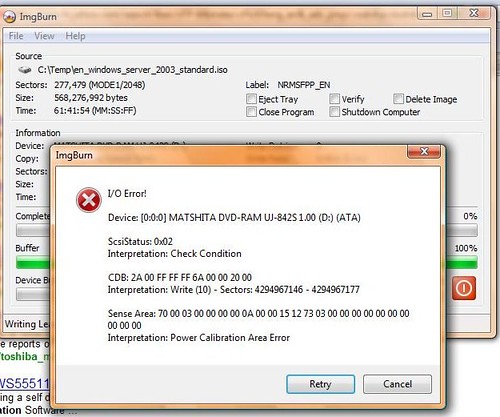
Basically, I get the above error message, it is not pretty. It sounds like Power Calibration Area Error would be quite serious. I received this error using ImgBurn, a free piece of software (compatible with Vista) used to burn ISO images. I had no problem with this software under XP and found it to be a very compact interface and the software performed nicely.
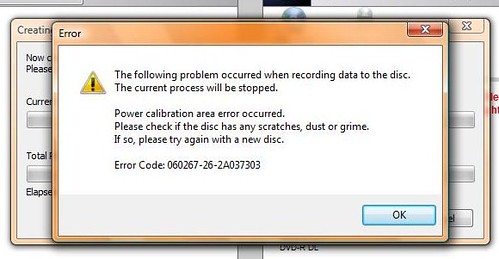
Computer Software Troubleshooting 101, use a different piece of software if the first one fails. Toshiba Disc Creator here I come, again with an error! This time the error was a little more specific information on the problem. The error code given was: 060267-26-2A037303 and a quick yahoo search of the topic returned zero results so I appeared to have hit a dead end. But wait, there are more errors to come. I click the OK button and guess what pops up:
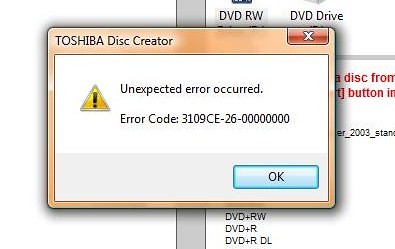
Yep, another error! This time it was: 3109CE-26-00000000 which I didn't even bother to search because of my results form my last attempt to find a solution.
Computer Software Troubleshooting 102, if the software does not appear to be the problem, blame the hardware! I was dealing with a CD drive here and the first culprit would be the laser. In the case of a laptop drive, the laser is actually exposed when the drive is ejected making it a prime target for dirt or other things that would obstruct the ability to write to a disc.
 After spending a few minutes looking for a CD laser cleaner disc that I had from way back in the day with no luck, I decided to get creative. Actually, I decided to spray my drive down with a can of air. Now that I have typed it down, it really does sounds like a bad idea, but let me share my results before any conclusions are reached.
First off, after visually inspecting the laser lens there did not appear to be anything obvious that would prevent the drive from working. My basic technique for cleaning was spray air all over the internal parts of the drive, focusing mainly on the electronics that actually do something. It didn't take but a few seconds and I was done. I did not expect it to work and though all hope of me ever burning a disc again was lost. However, my results were unexpected!
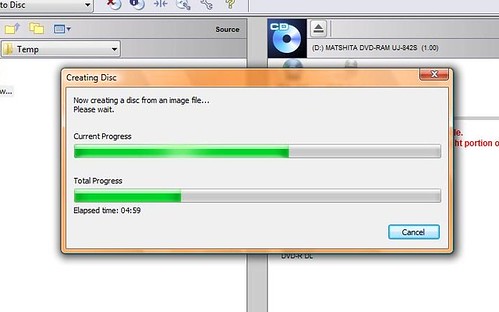
Basically, it worked. I am not exactly sure what happened, but I was successfully able to burn the ISO that I wanted to burn. To top things off, it was on a disc that failed to burn just a few minutes earlier. Hopefully this problem does not arise again, but at least I know that a can of air is useful for removing dust and getting annoying CD burning problems to go away too. I haven't tried burning again since my successful burn, but I am hoping I managed to fix the problem once and for all.
Monday, May 7, 2007
Software: iTunes and QuickTime Under Vista

It has been a while since I upgraded to Vista, and I am glad I have. However, I am still having problems. The main one that has bothered me recently, that I actually want to be fixed, is that I can not watch my video podcasts. The culprit is not iTunes, it is QuickTime. Basically, when I try to watch a video podcasts, like clockwork, I bluescreen. I actually am scared to click on a podcast under iTunes because I have to suffer through a reboot. (On a side note, reboots on Vista are not that bad. They are about the same as XP except software starts working faster but the actual loading of files into RAM takes forever because of the cache that Vista uses.) I am really fed up with the crashing and I was excited when there was an update for QuickTime, but just today I tried playing a podcast (after preparing for a reboot) and yet again I received a bluescreen.
Look up, that is the bluescreen that keeps popping up. Actually, the bluescreen comes in two flavors. One, which I was getting at first, was only being shown for a few seconds and then Vista would reboot happily. However, I have now been getting a bluescreen that stays up long enough for me to get out my camera and take a picture of the screen. This specific type of bluescreen is one of those enjoyable ones where it freezes the audio output on a loop and a nice screeching loop of the first sound of the movie is played.
Lately I have been having to watch the podcasts that I really want to watch on their websites. I really have been watching a lot fewer podcasts since I upgraded to Vista.
Monday, April 30, 2007
Computer: RAM Upgrade!

A while back I ordered 2GB worth of RAM from Crucial. I have been anxiously waiting and waiting to install it since I upgraded to Vista. Originally I was not even going to upgrade to Vista until the RAM upgrade, but I was suddenly struck with the urge to upgrade and did an awful job at resisting. I have been waiting to upgrade my RAM primarily because of my BestBuy extended warranty. I was afraid that if I upgraded my RAM it would void my warranty. My Toshiba manufacturer warranty is almost up and I really don't care about that now. I am just afraid in a year my tablet screen is going to wear out and break in some manner. Tablet screens (especially the convertibles) are notorious for that.
After my first try with BestBuy talking on the phone (about a week ago) they said it would void my warranty and transfered me to Geek Squad in a split second. I was told by Geek Squad it would cost about $40 for them to install the RAM and, although they don't like to, they will install the RAM i purchased form Crucial. Now, for a computer geek who has installed RAM literally hundreds of times on desktops, this was not good news. While I have never actually installed RAM in a laptop before, I have taken apart one for work a long time ago. In my frustration I called BestBuy again (today) and this time was more careful how I clicked the buttons was put through with someone to ask my question. It was roughly, "If I upgrade my RAM in a desktop or laptop will it void my BestBuy extended warranty?"
I was told that a supervisor needed to be consulted, and after about 5 or so minutes I was told that that would not affect the warranty in any way. This was a good thing! Suddenly I had motivation to upgrade my RAM. After I re-found a guide to take apart a Toshiba M400 I started my work. The M400 and M405 are basically the same computer and the guide disassembled the tablet all the way down to the mother board, and I only needed to access under the keyboard (where the RAM door is located).
Sadly, I did not document my upgrade with pictures. Maybe when I am more accustomed to blogging I will actually remember. After the upgrade I reassembled everything in just a few minutes and booted back up. The Toshiba BIOS are a little crazy and it didn't even ask me to confirm the change in hardware before I saw a wonderful sight: the plain black Vista loading screen!
Success!
After I booted back up I let the computer run for a while to make sure it wouldn't crash and then decided to run the benchmarks built into Vista. Below you can see my old scores.
My score is not that bad. I am not too happy about my gaming graphics score but it is a tablet, what should I expect. Now, below are the benchmark scores ran after the RAM upgrade.
Now, only two of my scores actually changed (I was hoping for three of them to improve). First, as expected, my RAM score jumped from a 4.5 to a 4.7 (the same as my CPU score). This is attributed to, not the increase in the amount of RAM, rather, the clock speed of my new RAM is higher than the RAM that shipped with my tablet. The other area of improvement was my graphics score. It jumped from a 3.1 to a 3.3! (This score is the Windows Aero score. Even with a 3.1 Aero was giving me no problems.) Again, since the RAM has a higher clock speed and it is used as shared RAM for the graphics card, this makes sense. The additional RAM probably did make a difference here. I did not see an improvement in my gaming graphics score. Now, this is still logical because the benchmark is testing my actual GPU, but since I now have faster RAM (and double the amount) I expect to see an improvement in gaming as well. Even though the only game I play is Second Life. I might even be able to multitask while I game, although Second Life has always had a tendency to crash constantly on me (under XP and Vista).
Some reactions to the additional RAM under Vista, it makes a huge difference! I went from having 70% of RAM used at boot to 35% of RAM used a boot. Additionally, I don't have as much hard drive access when the computer is "idle." Vista already has way more hard drive read writes than XP, and making the jump form 1GB to 2GB really helps cut down on that (just from my unscientific observations). I have been using ReadyBoost from the start, and it appears that it is not being used as much. I guess that can be attributed to the fact that Vista uses "free" RAM as a cache for the hard drive, thereby using all installed RAM, while other operating systems just leave it empty. I still want to get a larger SD card for ReadyBoost, I might just procrastinate though.
My next project will be putting my old RAM into Cassie's Tablet. She still runs XP and only has 512MB of RAM! She will be so happy after she upgrades. I also think she is going to reinstall XP here soon so she will be just zooming right along. That is with her last generation operating system. ;)


